Hippo BOT Setup Guide

You can setup the Hippo BOT and it will automatically intract with the users according to the provided information. Here are the basic steps to create a BOT:

1. Create A Chatbot from scratch
2. Create A Chatbot from templates

Let’s Create a BOT from scratch here.

Click on the “Create A Chatbot from scratch” and you will be redirected to the BOT detail page.
Now enter the BOT name on top right side of the screen and click on the check tick to save the BOT name.

Now scroll to the “CONVERSATION FLOW” section and you can see the first question of the BOT by default.

Major components of the BOT

Response Type

Following are the response types available on the Hippo Bot

Type Description
Email Email is required from the customer
Name Text value is required from the customer
Number 0-9 any input required from the customer
Phone Number Phone number is required and counter code list visible to customer
Plain Text Any text value required from the customer
URL Ask for the URL from the customer
Button Button option is visible to customer
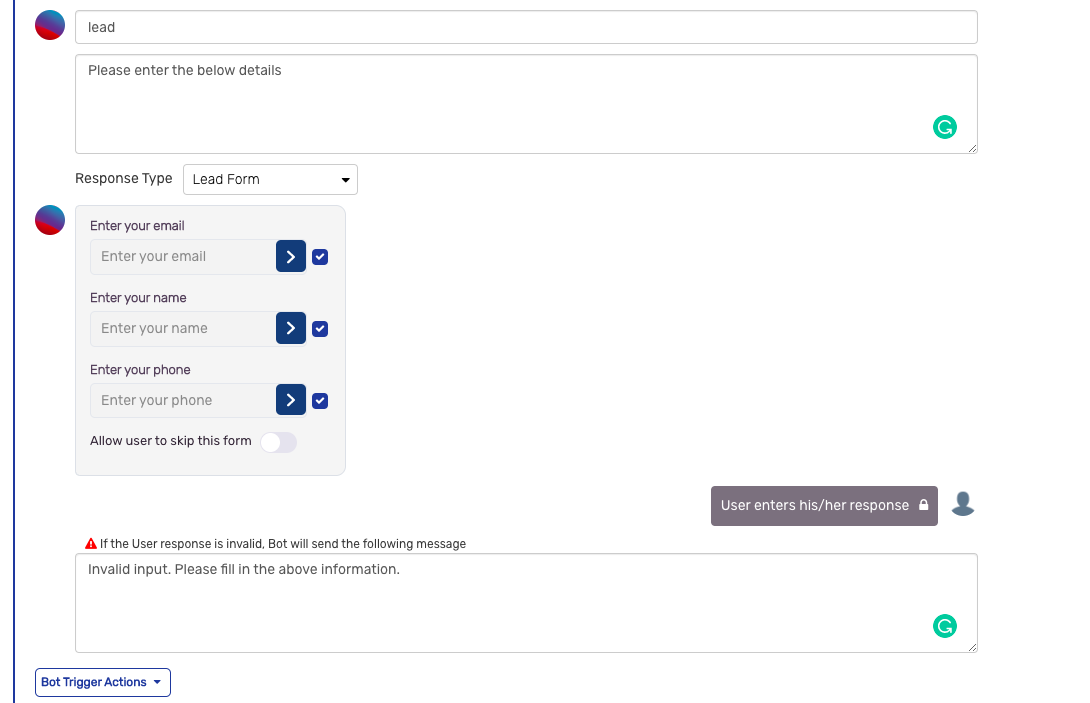
Lead Form Lead form is sent to customer for capturing the Name, Email and Phone number, and this value is added corresponding to the user
No response No input required from the customer and next question will be sent by the Bot
Image Upload the Image/Gif and it will sent to the customer
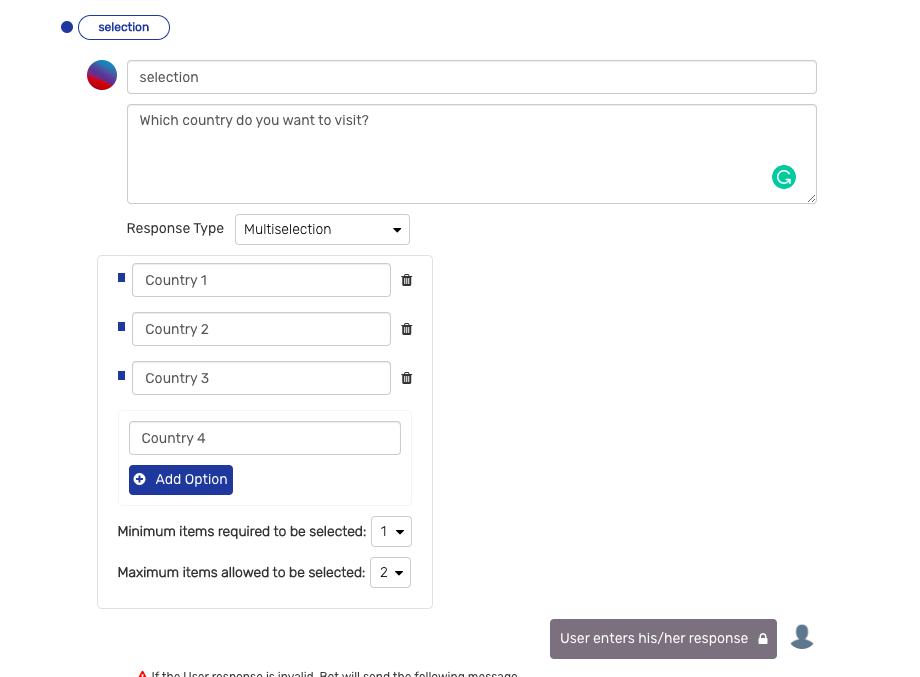
Multiselection For asking for the multiple option from the customer, also maximum and minimum selection can we control while creating the question
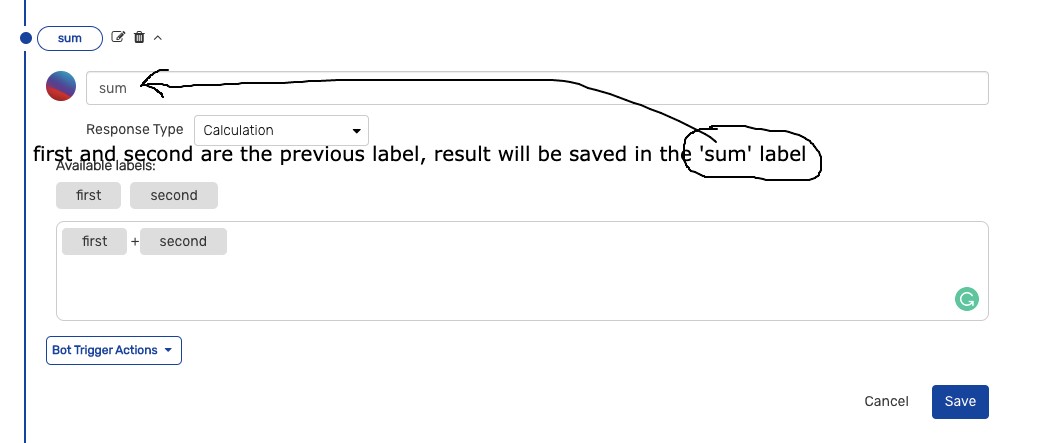
Calculation For calculate the simple formula with this option. Add the formula with the “Available labels” and output will be saved corresponding to the label
Embedded Video URL For adding the video inside the Bot
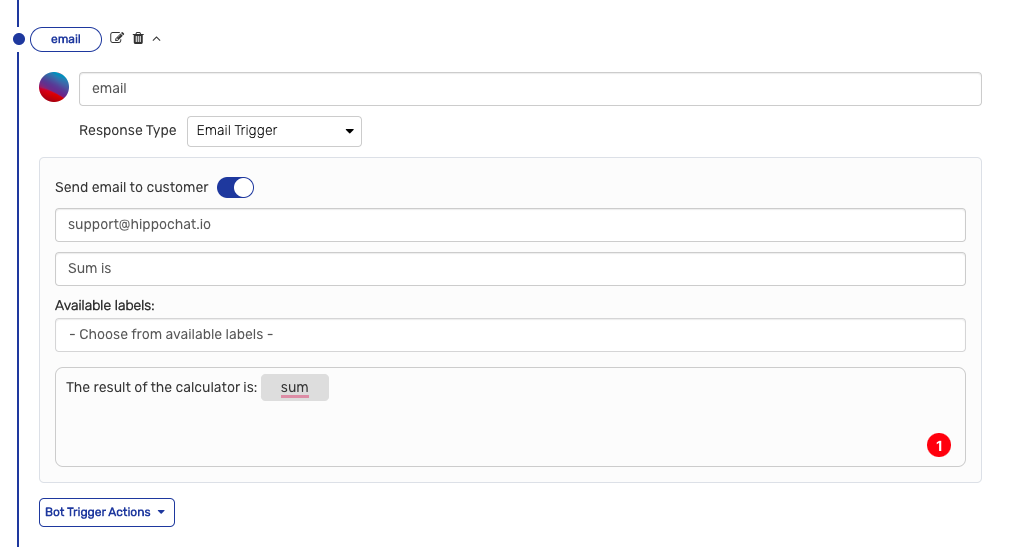
Email Trigger This option is send the email with the available label data
Address If you want to get the latitude and longitude from the customer
Date Bot will ask for the date from customer. You can control the future, past and All dates
Time Bot will ask for the time
Date & Time This option first ask for the date and then time from the customer
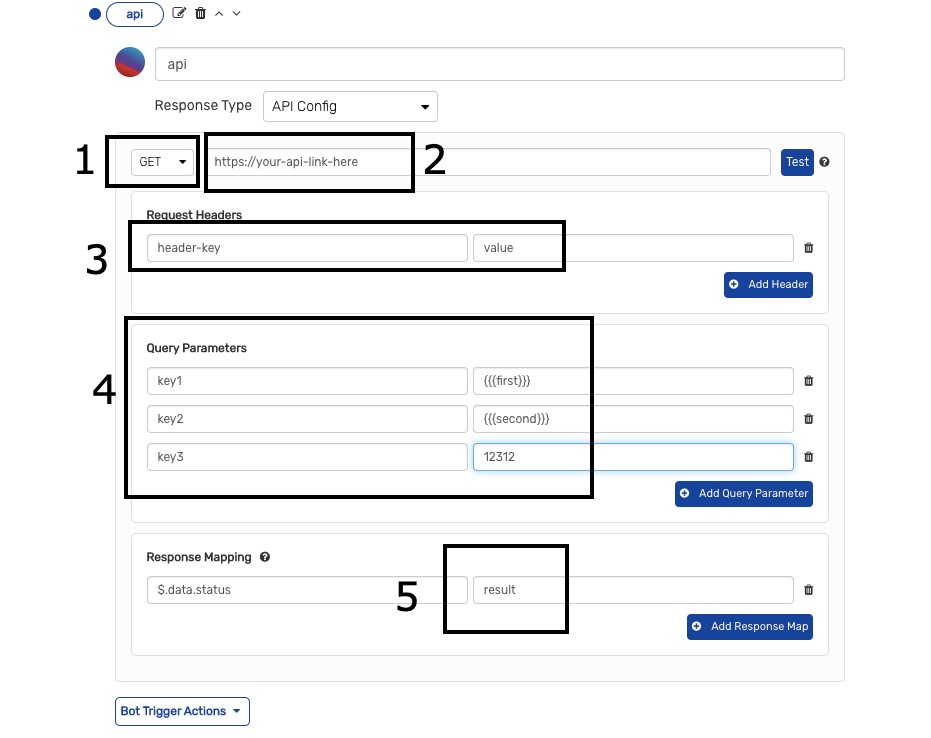
API Config Bot will hit the API on the based upon the above labels
Attachment Bot will ask for the attachment from the customer
Payment Plans Bot will ask for the payment from the customer
Ticket Support Bot ask the question from customer and then create a ticket on the Hippo platform
Assignment Card For assign the chat to agent

BOT Example

  1. Simple Bot Question
    Click on the “ADD CUSTOM QUESTION” button for adding the option. Now question form will open. Enter the label, Question and choose the response type and then message for invalid response. After this click on the “save” button. The Bot question is saved.

  2. Button Options
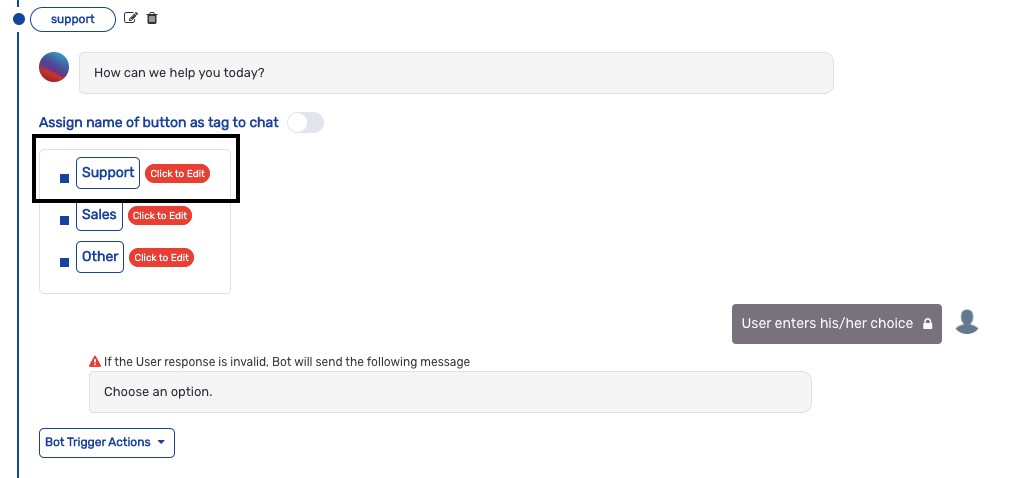
    Choose the Button response type and then button form will be shown. Now add the first button title, which will be shown to the customer. You can add as many buttons in the same question. Recommonded options is not more then 10. After the last option add the blank button option before click on the save button.
    Button Type:

Action Description
Assignment Assign the chat with in the selected team
Continue Chat Tiggered the next question
Open Link Open a entered link on browser
Audio Call Open the phone diler for make a call
Callback Send the callback with the entered data to the app side. (Develop needs to handle the callback mentioned in the integration doc)

After click on the save button, you can create the nested Bot flow, which mean you can split the flow. For example on first option choose the flow will be different and on the second button the flow of the bot will be different.
Click on the Button and add the nested Button options according the Bot flow.
Nested option

  1. Lead Form
    Choose this response type and then 3 fixed option will be appears, you can also enable the skip option and based on this option customer can skip this question if enabled.
    lead

  2. Multiselection
    Similar to the Button this option works. only major difference is that customer can choose multiple choices in this question. And you can’t create the nested Bot in this response type.
    selection

  3. Calculation
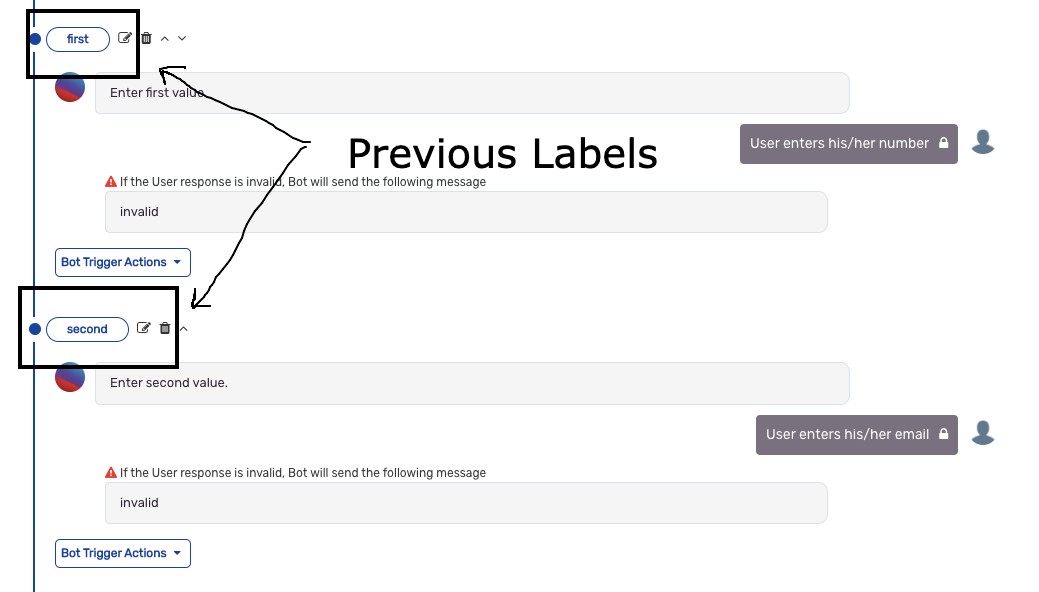
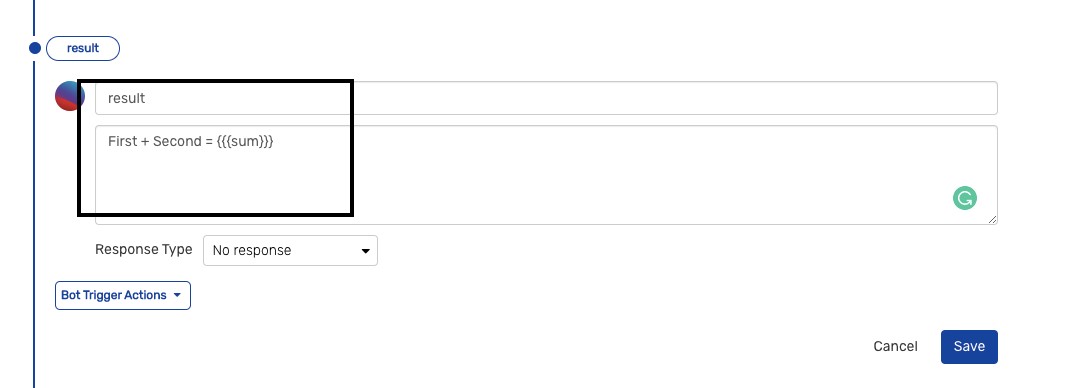
    Based upon the above label you can create the formula. For sum example first we’ll ask the two values and then in the calculation type it will ask for the formulas. Note that only number labels should be visible.

Input fields label

Label

Calculation with formulas

calculation

Result show on Bot

result

  1. Email Trigger
    Similar to calculation You can send the entered data to through email to you as well to the customer is customer email exists.
    email

  2. API Config
    Hippo Bot is capable to hit Get and Post APIs and use the response further inside the BOT. Lets take an example of GET API.

API

Response can be map with the start from the $ sign.For exp API output is {
“statusCode”: 200,
“message”: “Successfully.”,
“data”: {
“status”: “123”
}
}
$.data.status will capture the 123 in “result variable”.

Note: Save button will locally save the changes. Data will be saved only after click on the “Save and publish button once all the changes done”

Edit Bot Option

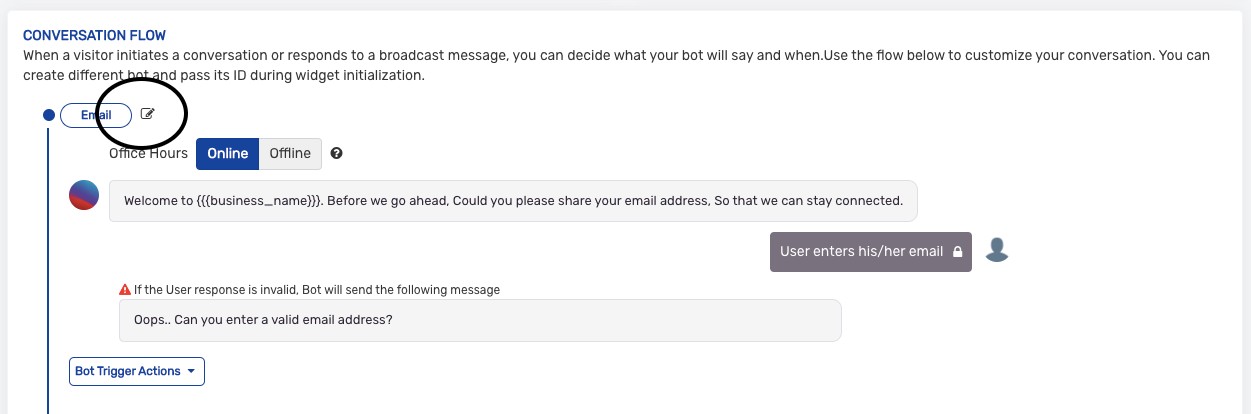
If you want to edit the Bot question then click on the edit icon just right side of the label, the question form will be open. Change the question and the save it.
After made the changes you need to click on the save and publish button to update the Bot.

Edit option